 Nullprint
Download and Install Nullprint on Windows or macOS
This guide gets Nullprint, the AI antidetect browser, onto your computer and ready for your first profile. It takes about five minutes, most of it waiting for downloads.
What you need
- Windows: Windows 10 or 11, 64-bit.
- macOS: macOS 12 or later, on Apple silicon (M1 and newer) or Intel.
- An email address for your account.
Nullprint runs on Windows and macOS only.
Step 1: Download the right installer
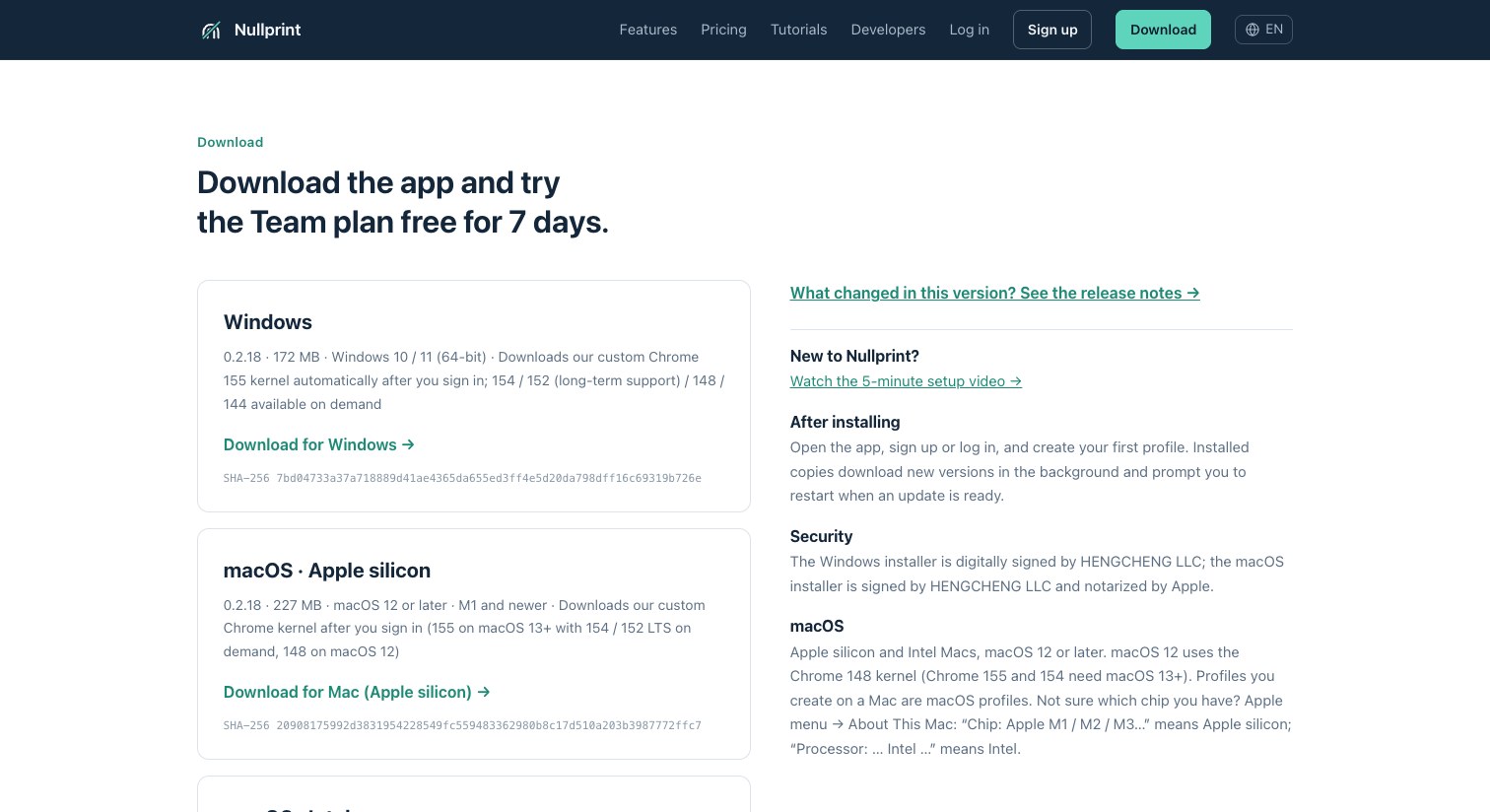
Go to the download page and pick your system:
- Download for Windows — one installer for 64-bit Windows.
- Download for Mac (Apple silicon) — for Macs with an M1 chip or newer.
- Download for Mac (Intel) — for Intel Macs.
Not sure which Mac you have? Open the Apple menu → About This Mac. "Chip: Apple M1/M2/M3…" means Apple silicon; "Processor: … Intel …" means Intel.
Step 2: Install
On Windows
Run the installer and follow the steps. On the last screen, click Finish; Nullprint opens automatically. The installer and the app are digitally signed by HENGCHENG LLC.
No icon after installing, or Windows can't find Nullprint.exe? An antivirus program has usually quarantined the freshly installed file. Restore Nullprint.exe from the antivirus quarantine, add the install folder (by default %LOCALAPPDATA%\Programs\Nullprint) to its trusted list, or pause the antivirus while you install, then run the installer again.
On macOS
Open the downloaded file and drag Nullprint into Applications. Open it from Applications. The first time, macOS asks whether you want to open an app downloaded from the internet; click Open. The Mac installer is signed by HENGCHENG LLC and notarized by Apple.
Step 3: Sign up
Open Nullprint and click Sign up. Enter your email and a password, click Sign up and start trial, then type the 6-digit code we email you and click Verify and start the trial.
New accounts start with a free 7-day Team trial. When it ends, the account moves to the Free plan: 5 profiles and 1 member, free forever. Nothing is deleted; profiles beyond the first 5 are locked until you upgrade.
Step 4: Let the browser kernel download
The first time you sign in, Nullprint downloads its own Chrome kernel. This takes a minute or two and only happens once. New profiles use the Chrome 155 kernel (macOS 12 uses Chrome 148); older kernel versions can be added later if you need them.
After that, Nullprint updates itself: new versions download in the background, and the app asks you to restart when one is ready.
Next: create your first profile
You're in. The next step is adding a proxy and creating your first profile. Follow the step-by-step tutorial or watch the 4-minute video:
FAQ
Is Nullprint free? Yes, there is a Free plan with 5 profiles and 1 member, free forever. New accounts also get a 7-day Team trial with every feature.
What happens when the trial ends? Your account moves to the Free plan. You can keep opening your 5 oldest profiles; the rest are locked, not deleted, and come back when you upgrade.
Do I need my own proxies? Yes. Nullprint doesn't sell proxies. Any HTTP or SOCKS5 proxy works, including ones with a username and password. See how to set up proxies.
Can my team use it on their own computers? Yes. The account owner creates member accounts and grants access to groups or profiles; members sign in with the same app on their own computers.
Is there a Linux version? Not at the moment. Nullprint runs on Windows and macOS.
About Nullprint
Nullprint is an AI antidetect browser for Windows and macOS: AI agents can operate real browser profiles through MCP. The Free plan gives you 5 profiles, free forever, and new accounts start with a 7-day Team trial. Download Nullprint · More tutorials